Smartphone settings worth changing on day one
Smartphone settings worth changing on day one: updates, backups, screen lock, location, permissions and notifications for a safer new phone.
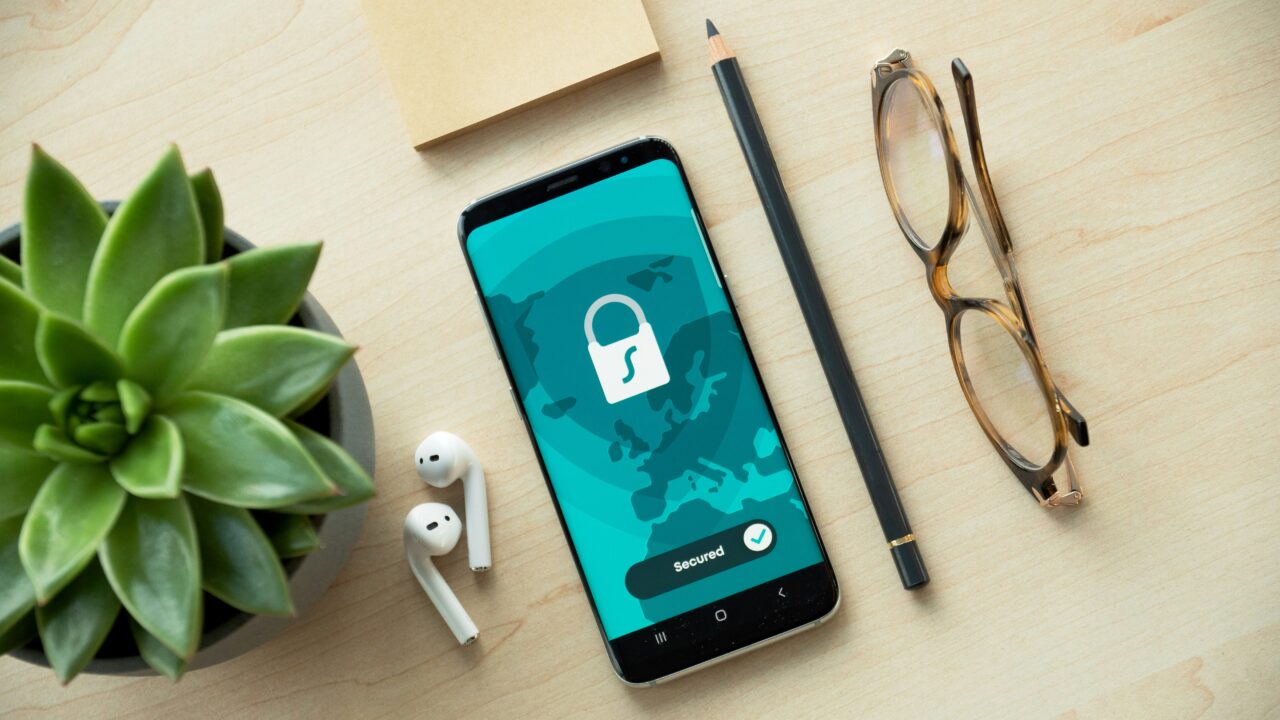
A new phone is usually set up in a rush. You sign in, restore your apps, change the wallpaper and start using it. The settings that matter most are the quiet ones: updates, backups, lock screen security, recovery options, permissions and notifications.
The Short Version
Key Takeaways
- Set up automatic system and app updates before you install everything else.
- Use a strong screen lock, turn on account recovery options and check two-step verification for your main account.
- Backups, photo sync and lost-phone recovery are only useful if they are switched on before something goes wrong.
- Review notifications, location access and app permissions early so your phone starts quiet and private.
Start With Updates, Not Wallpaper
The first setting to check on a new smartphone is not the theme, the ringtone or the camera shortcut. It is software updates. A phone may arrive with an older version of iOS or Android, and the apps restored from your old device may also need patches.
The UK’s National Cyber Security Centre advises people to install software and app updates promptly because they often close security holes. It also recommends turning on automatic updates where available. That sounds basic, but it is one of the easiest ways to stop your phone becoming risky through neglect.
On iPhone, check Settings, General, Software Update, then Automatic Updates. On Android, the wording varies by manufacturer, but look for System Update in Settings and app updates in Google Play. If the phone says an update needs WiFi, power, storage space or a restart, do that before you load it with dozens of apps.
Lock Screen And Account Recovery
Your phone’s screen lock protects more than the device. It protects email, banking apps, messages, photos, saved passwords, cloud storage and the password reset links that arrive in your inbox. A weak lock turns a lost phone into a wider account problem.
Use a six digit or longer passcode, or a strong password if your device supports it comfortably. Face ID, Touch ID and fingerprint unlock are convenience layers, not replacements for a proper passcode. The passcode still matters when the phone restarts, after too many failed attempts or when biometric unlock is unavailable.
Next, check the account behind the phone. For iPhone, that means your Apple Account. For Android, it usually means your Google Account. Make sure the recovery email, recovery phone number and trusted devices are current. If you changed number, email provider or laptop recently, your recovery details may be stale.
Turn on two-step verification for the account if it is not already active. The NCSC’s 2-step verification guidance explains why this matters: even if someone gets your password, they still need another proof that they are you. Also save backup codes or another recovery method somewhere you can reach if the phone itself is missing.
Backups And Photo Sync
Backups are boring until they are the only thing standing between a lost phone and a lost decade of photos, messages and settings. The important question is not whether your phone has a backup feature. It is whether your new phone is actually backing up, what it includes and when it last completed.
Apple’s iCloud Backup support explains that iCloud Backup can run automatically when the device is connected to power and WiFi with the screen locked. Google’s Android backup guidance explains that Android can back up content, data and settings to your Google Account, with some data protected by the device screen lock.
Do not assume photos are included in the same way as device settings. iCloud Photos, Google Photos, WhatsApp media and local camera files can behave differently depending on your settings and storage plan. Open the backup screen and look for the last successful backup date. Then open your photo app and check whether it says backup or sync is complete.
Location, Find My And Lost-Phone Recovery
Lost-phone recovery has to be set up before the phone is lost. On iPhone, check Find My iPhone, Find My network and Send Last Location. Apple’s Find My setup guidance walks through the setting. On Android, check Find Hub or Find My Device, the signed-in Google Account and location settings. Google’s support says Find Hub is automatically turned on when a Google Account is added, but settings can still vary.
The point is not to obsess over tracking. It is to make sure you can lock, locate or erase the device if it goes missing. This connects directly to our explainer on how Find My and Find Hub actually work, because the map is useful only when the account, location and network settings are ready.
Also check what can be seen from the lock screen. Some people like message previews, wallet shortcuts and smart home controls on the locked phone. Others would rather hide previews until the phone is unlocked. A good first-day rule is simple: if a stranger found your locked phone, what would you be comfortable with them seeing?
Notifications, Permissions And Default Apps
A restored phone often inherits years of bad habits. Every shopping app, takeaway app, social app and game wants attention. If you allow all notifications during setup, your new phone can become noisy before the first day is over.
Start with notification summaries, focus modes or do-not-disturb schedules. Then turn off alerts from apps that do not deserve interruption rights. A banking alert, calendar reminder or delivery update may be useful. A daily nudge from an app you barely use is not.
Permissions deserve the same treatment. On Android, the privacy dashboard shows which apps used sensitive permissions such as location, camera and microphone. On iPhone, Privacy and Security gives similar controls. Set location access to “while using” where possible, remove camera and microphone access from apps that do not need it, and be sceptical of contacts access requests.
Default apps are worth a quick look too. Choose the browser, email app, maps app and password manager you actually use. If you are still saving passwords in scattered places, our guide to password managers explains why a dedicated vault is usually cleaner than memory, notes or repeated passwords.
A Worked Example
Imagine you have just bought a mid-range Android phone for everyday use. You restore from your old device, then spend 20 minutes on first-day settings before installing extra apps.
You update Android, open Google Play and turn on automatic app updates. You set a strong screen lock, check that your Google Account has two-step verification, save backup codes on another device and confirm your recovery email still exists. You turn on device backup, check photo backup separately and open Find Hub to confirm the phone appears in your account.
Then you reduce notification access. The bank, calendar, messages and transport apps can interrupt you. Shopping, streaming and old games cannot. You open the permission dashboard and change several apps from always-on location to only while using. You remove microphone access from an app that has no reason to hear anything.
Nothing about that setup is dramatic. But if the phone is stolen, damaged or simply annoying, those 20 minutes pay back quickly.
What This Means For You
If you are setting up a new phone, do not treat security and privacy settings as something to revisit later. Later usually means after a problem: a lost device, a failed restore, a noisy notification mess or an app that has been tracking more than you realised.
The practical move is to create a short first-day checklist. Updates, screen lock, account recovery, two-step verification, backups, photo sync, lost-phone recovery, notifications and permissions. That is enough for most people.
You do not need to make the phone difficult to use. The aim is a device that updates itself, backs up the right things, can be recovered if lost, and interrupts you less. That is a better start than any wallpaper.
In Plain English
When you get a new phone, set the boring protections first. Update it, lock it properly, back it up, make sure you can recover your account, turn on lost-phone tools and reduce noisy or nosy app access. The best smartphone settings are the ones you never notice until they save you trouble.