USB-C explained: why the same plug does not mean the same thing
USB-C explained in plain English: why cables, chargers and ports with the same plug can still behave differently for charging, data and displays.
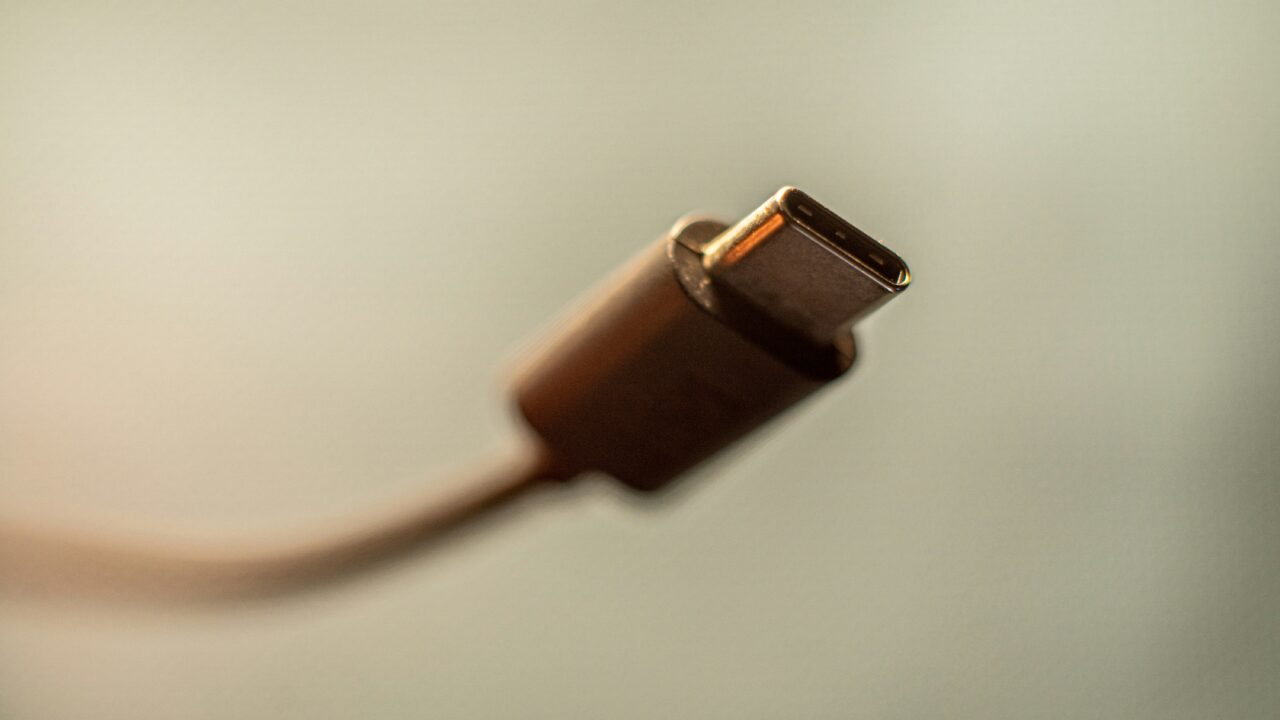
USB-C explained plainly means this: the small oval plug is only the shape. It does not promise fast charging, fast data, or display support. To buy the right cable, charger, dock, or monitor, you need to check what each part actually supports.
The Short Version
Key Takeaways
- USB-C explained is about capability, not just connector shape.
- The charger, cable, and device must all support the same charging level.
- Data speed and display support are separate from charging speed.
- Good labels show wattage, data speed, and official certification marks.
What USB-C actually is
USB-C, also called USB Type-C, is a connector design. It describes the small oval plug and socket now used on phones, tablets, laptops, headphones, chargers, docks, and portable monitors.
The connector is reversible, compact, and flexible. That is why it replaced older USB-A and Micro-USB connectors on many devices.
But USB-C explained properly starts with a warning. The shape of the port does not tell you the features behind it.
A manufacturer can use the same shape for basic charging, fast charging, slow data, fast data, video output, docking, or a mix of those jobs. The plug is the doorway. The electronics behind it do the work.
This is why two cables can look identical and behave very differently. One may charge a phone overnight but copy video files slowly. Another may charge a laptop, run a screen, and move data quickly.
Why USB-C explained does not mean fast charging
Charging depends on three pieces agreeing with each other: the charger, the cable, and the device. If one has a lower rating, the setup usually falls back to the safest supported level.
A powerful laptop charger will not force a phone to accept more power than it can handle. A laptop that needs more power will not charge well from a weak phone charger.
USB Power Delivery, often shortened to USB PD, is the common standard for higher charging levels over USB-C. The USB Implementers Forum explains how USB PD lets devices negotiate power safely.
Wattage is the number to check. A small phone charger may be fine at 20W or 30W. Many thin laptops expect 45W, 60W, 65W, or more.
USB-C explained for charging is simple in practice. A cable that charges earbuds is not automatically a laptop charging cable. If the cable does not state its power rating, treat it as unknown.
Why data transfer is a separate question
Charging speed and data speed are not the same thing. A USB-C cable can carry plenty of power while supporting only basic data transfer.
That is fine for charging. It is frustrating if you connect an external SSD and expect fast file copies.
Data capability is usually shown in gigabits per second, written as Gbps. Older or cheaper cables may support only USB 2.0 speeds. Better cables may show 5Gbps, 10Gbps, 20Gbps, 40Gbps, or 80Gbps.
The USB4 specification uses consumer names such as USB 20Gbps and USB 40Gbps. Later USB4 Version 2.0 material describes USB 80Gbps over USB Type-C.
You do not need to memorise every version number. USB-C explained for data means matching the cable to the job. Large photo libraries, external drives, and laptop docks need enough bandwidth.
How video, docks, and displays fit in
USB-C can also carry video, but not every port or cable supports it. Some laptops send DisplayPort video through USB-C. Some phones and tablets can mirror or extend their screen. Others cannot.
A USB-C to HDMI cable may work with one laptop and do nothing with another. The second device may not support video output through that port.
Docks make this clearer. A dock might promise charging, Ethernet, USB accessories, and two monitors from one cable. That only works if the laptop, cable, and dock all support the required mix.
If one part is weaker, the result can be confusing. A monitor may stay blank. A dock may run slowly. A laptop may lose battery while plugged in.
This is the same buying discipline we use in our guide to tablets versus laptops. Start with the job, then check the specification that proves the device can do it.
Cable labels worth checking
The most useful cable label is plain about power and data. Look for wattage if charging matters. Look for a Gbps rating if data transfer or docking matters.
If a cable is sold as USB4, Thunderbolt-compatible, 40Gbps, or 80Gbps, check the length and exact wording. Longer high-speed cables may need better construction.
Official certification logos can help, but they are not the only thing to read. Product pages should state maximum charging wattage, maximum data speed, and display support.
USB-C explained for buying decisions comes down to proof. Reviews can help with reliability, but the specification is still the starting point.
It is also worth organising your cables. Keep one known-good cable for your laptop dock. Mark it, leave it at the desk, or buy a second known-good cable.
Many USB-C problems start when the right cable is replaced by one that looks the same. The drawer cable may fit. That does not mean it can do the job.
A Worked Example
Imagine you buy a portable monitor for your laptop. The monitor has USB-C. Your laptop has USB-C. You also have a USB-C cable from an old phone.
It feels reasonable to expect everything to work. Then the monitor stays blank.
The likely reason is not mysterious. The phone cable may support charging and basic data only. It may not carry video. It may also lack enough power for the monitor.
The fix may be the right cable, not a new laptop or a replacement screen. You need a cable rated for video and enough power, plus a laptop port that supports display output.
Now change the example. You connect an external SSD with that same phone cable. The drive appears, but file transfers crawl.
Again, the plug fits, but the cable is the wrong tool. USB-C explained in this case means checking data speed before blaming the drive.
If you regularly move large files from a phone or laptop, our guide to what makes a phone camera good now is useful. Storage and transfer speed matter once photos and videos leave the device.
What This Means For You
If you are buying a charger, cable, laptop, dock, or monitor, stop treating USB-C as one feature. Ask what job you need it to do.
Charging, file transfer, and video output are different questions. A product can be good at one and poor at another.
For a phone, a reliable charger and sensible cable may be enough. For a laptop, check wattage before buying spare chargers. For a dock or external display, check video support and data speed.
For small businesses, the practical answer is to standardise. Keep known-good cables and chargers for desks, meeting rooms, and travel bags. Label the ones that support laptop charging or displays.
USB-C explained well should save time. It costs less to buy and label the right cable than to keep diagnosing charging, screen, and dock problems.
In Plain English
USB-C is the shape of the plug. It is not a promise that charging, data, and video will all work at full speed.
USB-C explained in one rule is easy: check the cable, charger, and port ratings before buying or blaming a device. If the job matters, use a cable that clearly says what it supports.