AI tools for photos and video: what is actually worth using
A plain-English guide to the AI photo and video tools that are actually worth your time, from upscaling and background removal to video editing on any budget.
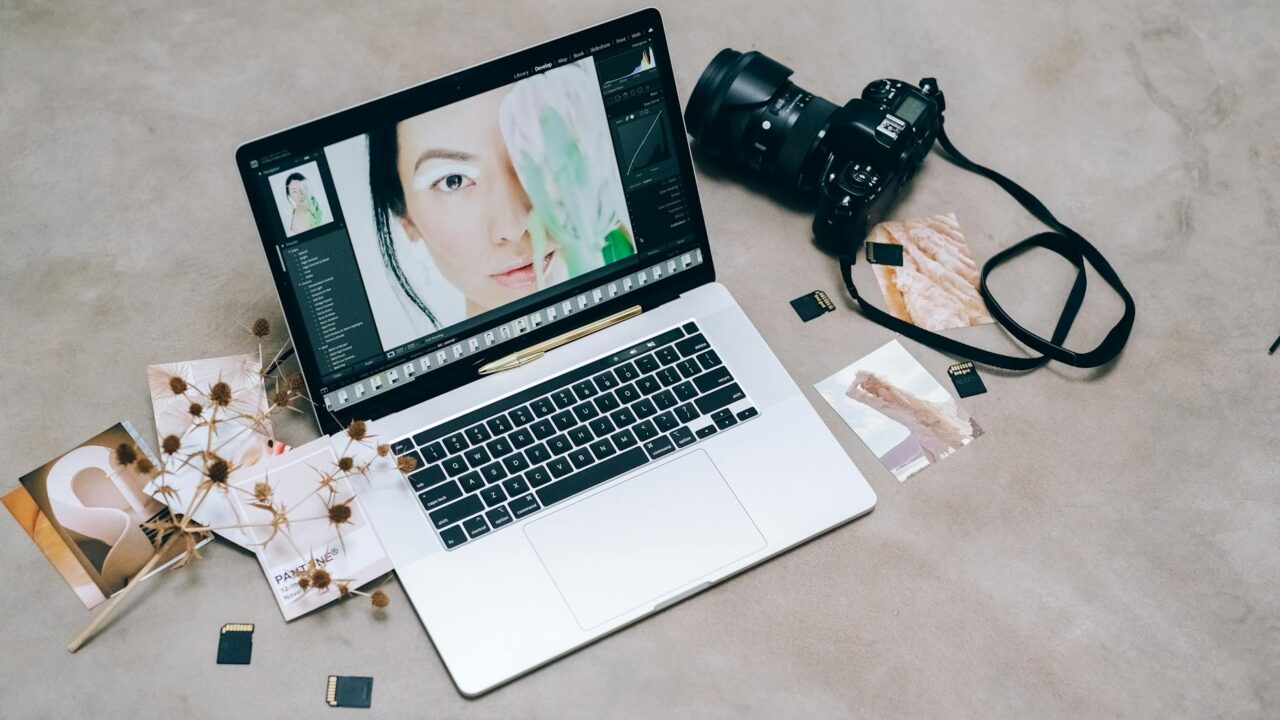
AI has changed photo and video editing faster than almost any other area of software. Some of the new tools are genuinely useful. Others are mostly marketing. This guide explains which is which.
Tasks that needed a professional retoucher or hours of manual work two years ago now happen in seconds. Often for free, on your phone. Some of this is a real step forward. Some is just good marketing.
The trick is knowing which is which before you pay for anything. This guide focuses on the tools that consistently deliver on what they promise. Each section covers a specific use case and names the products worth trying.
Photo tools worth using
Photo upscaling is the area where AI has made the biggest, clearest difference. Topaz Photo AI is the benchmark tool here. Feed it a low-resolution image and it rebuilds fine detail, including skin texture, fabric, and background foliage, that was not in the original file.
This is not stretching or blurring. The model predicts what missing detail should look like, based on training on millions of images. The results are striking with older photos. A scanned family print from the 1970s can come out looking sharper than the original.
Topaz also handles noise reduction and motion sharpening. If you shoot in low light, whether that is wildlife, sport, or indoor events, the noise reduction alone justifies the cost. The free trial lets you test it on your own files before you commit.
Background removal has also improved a lot. Adobe Firefly, built into Photoshop and available through Adobe Express, handles complex edges well. Hair, semi-transparent fabric, and fine branches are all manageable now. The old manual selection tools never got close to this level of accuracy.
Apple’s built-in background removal on iPhone and Mac is also good for everyday use. Long-press a photo in the Photos app and the subject separates cleanly, with no extra software needed. It will not handle every edge case, but for portraits and product shots it covers most of what people need.
Object removal and what to expect
Object removal, sometimes called generative fill or inpainting, works by replacing a selected area with AI content. That content is generated to blend into the rest of the image. Photoshop’s generative fill does this well when the area being removed sits against a consistent background. Remove a bin from a street scene or erase a stranger from a holiday photo and the result is often clean.
Where it struggles is with complex backgrounds. A crowded market scene, patterned fabric, or water reflections all give the tool difficulty. The filled area can look synthetic, and repeated correction attempts tend to make it worse. It is worth trying, but the results vary a lot.
Luminar Neo takes a different approach. It is built around creative AI effects rather than precision editing. Its sky replacement tool swaps the sky in a landscape photo and blends lighting and reflections convincingly.
As a tool for composite photography or advertising work it is clever. As a way to improve a specific real photo, it raises questions about what you are actually looking at.
Style transfer tools, which can make a photo look like a film print or an oil painting, are best treated as creative filters. They change what an image looks like rather than improving the one you took. They are fun and some results are striking.
They are not substitutes for good editing. You can read more about what generative AI is and why the outputs look the way they do.
Video tools that deliver
CapCut has become the tool that millions of people use without realising how much of it runs on AI. Auto-captions are accurate for most clearly spoken content in good audio conditions. Background removal works on video subjects in real time.
The AI-generated b-roll feature creates short video clips from text. This is useful for social media creators who need visual variety without a second camera or a stock library. The results are not cinematic, but they do not need to be for the platforms they are made for.
DaVinci Resolve comes up often among people who want professional-level colour tools without a monthly subscription. Its Magic Mask feature tracks subjects frame by frame in video. The accuracy here would have needed expensive dedicated hardware just a few years ago.
The colour science tools in DaVinci have always been strong. The AI additions, including automatic scene detection and dialogue isolation for audio, have made the free version a serious option. Documentary makers and event videographers will find it covers most of what they need. Anyone working without a studio budget will reach the same conclusion.
Adobe has a useful overview of how generative fill works in Photoshop if you want to understand the technology behind the tool.
What these tools still cannot do well
All of these tools have limits that their promotional material does not highlight. Object removal struggles with complex backgrounds. Sky replacement can look wrong when the light direction in the original photo does not match the new sky. Style effects can flatten fine detail that was present in the original image.
Video AI captioning makes consistent errors with names, technical terms, and accents. The accuracy rate for standard speech is high. But that final five to ten per cent of errors still needs a human check before anything goes out.
Automatic b-roll generation produces generic-looking clips. They work as placeholders but rarely as the finished product.
Understanding what a tool cannot do is as useful as knowing what it can. You avoid disappointment and you know when to switch to a different approach or do the work manually.
The common thread is expectation management. These tools work best when you know their limits. They fail most visibly when used on material they were not designed for. A quick test on a representative file is always worth doing first.
Save complex or important work until after you have learned what the tool actually produces. That order matters.
How to choose between them
Most of these tools have free tiers or trial versions. The gap between a demo and what you can produce on your own files is sometimes significant. Always test a tool on your actual images before paying for anything.
For photo editing, Photoshop’s Firefly tools and Topaz Photo AI are the clearest value for anyone who takes photography seriously. Topaz works best for upscaling and noise reduction. Photoshop works best for everything that requires combining elements or making targeted changes.
For video, CapCut is the right starting point for social content. DaVinci Resolve is the better choice if you want professional results without ongoing costs. The two are not in direct competition.
They serve different needs. You can read about how AI writing tools compare for a similar analysis applied to text work.
The AI in all of these tools keeps improving. What feels limited now will likely feel ordinary within a year. The barrier between an idea and a finished image or video has dropped a lot.
The tools that genuinely deliver on that are worth your time. The ones that are mostly marketing will become clearer the more you use them on real files. Testing before subscribing is always the right approach.